
Follow the screens from your original statement to a usable export. Choose the CSV-only route or prepare a reconciled cashbook for your accounting package.
Prepare your bank file · Check before exporting · Watch the demonstration
Real SmartBank screens
Your bank statement.
Before, during and after.
Follow the nine-step journey with real SmartBank screens: retrieve your bank statement, prepare and reconcile the transactions, then save an export for your accounting package.
Import a supported original bank-statement PDF directly into SmartBank. Already have bank-downloaded CSV, OFX or OFC files? Import those directly too.
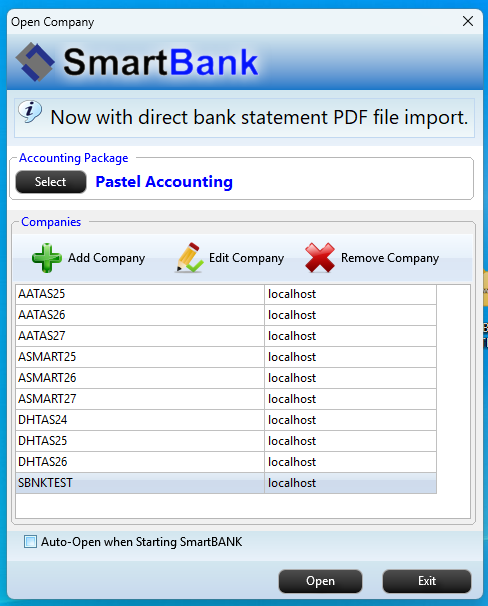
Open SmartBank and select your accounting package
Choose the accounting package or cashbook format you intend to use. This sets the starting point for preparing your bank transactions.
 Enlarge screen ↗
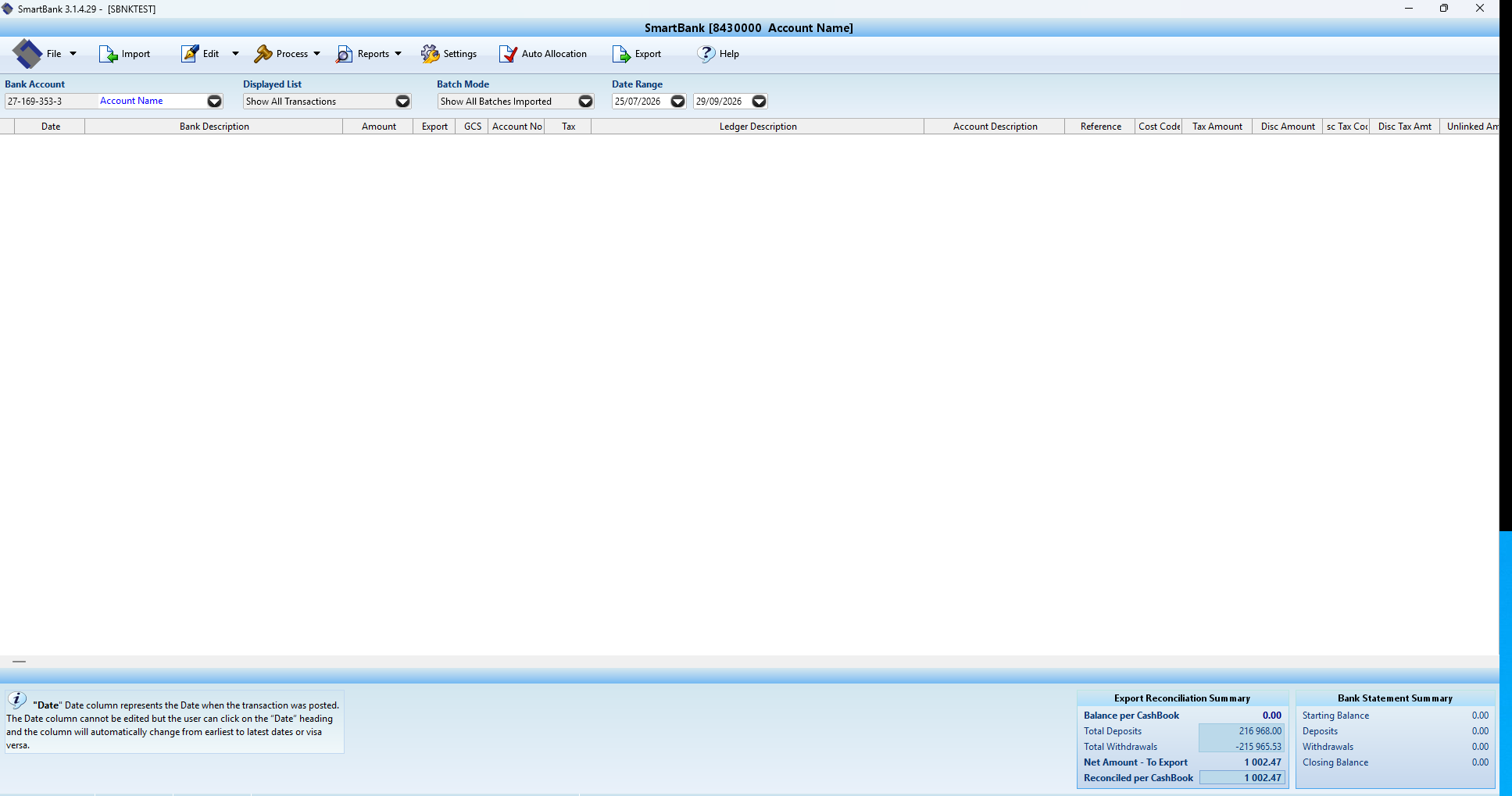
Open your company and bank account
Select the company you want to work on, then open its bank account. The transaction workspace is now ready for your bank-statement import.
 Enlarge screen ↗
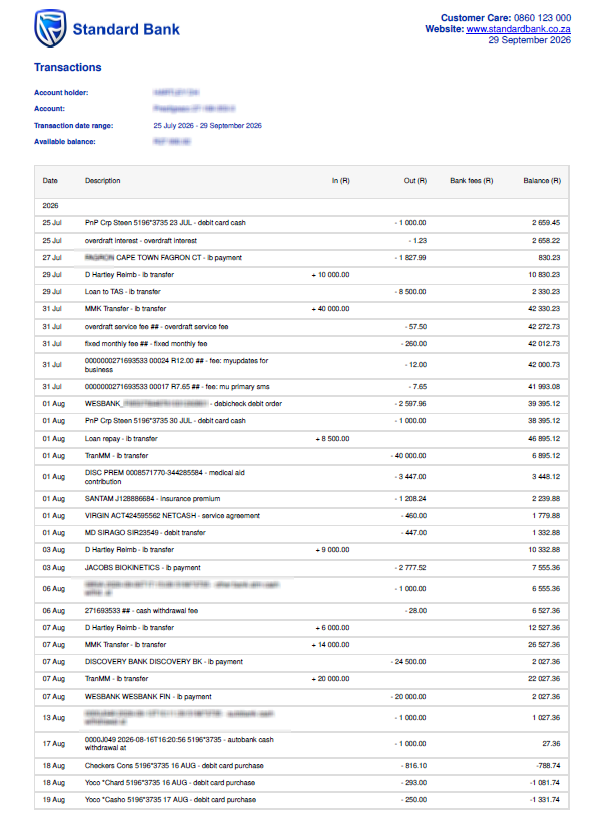
Download the original statement from your bank
Retrieve your original bank-issued PDF statement from your bank’s website or app. You can also use bank-downloaded CSV, OFX or OFC files. For PDF import, use the original file: scans, photos and image-only PDFs are not supported.
 Enlarge screen ↗
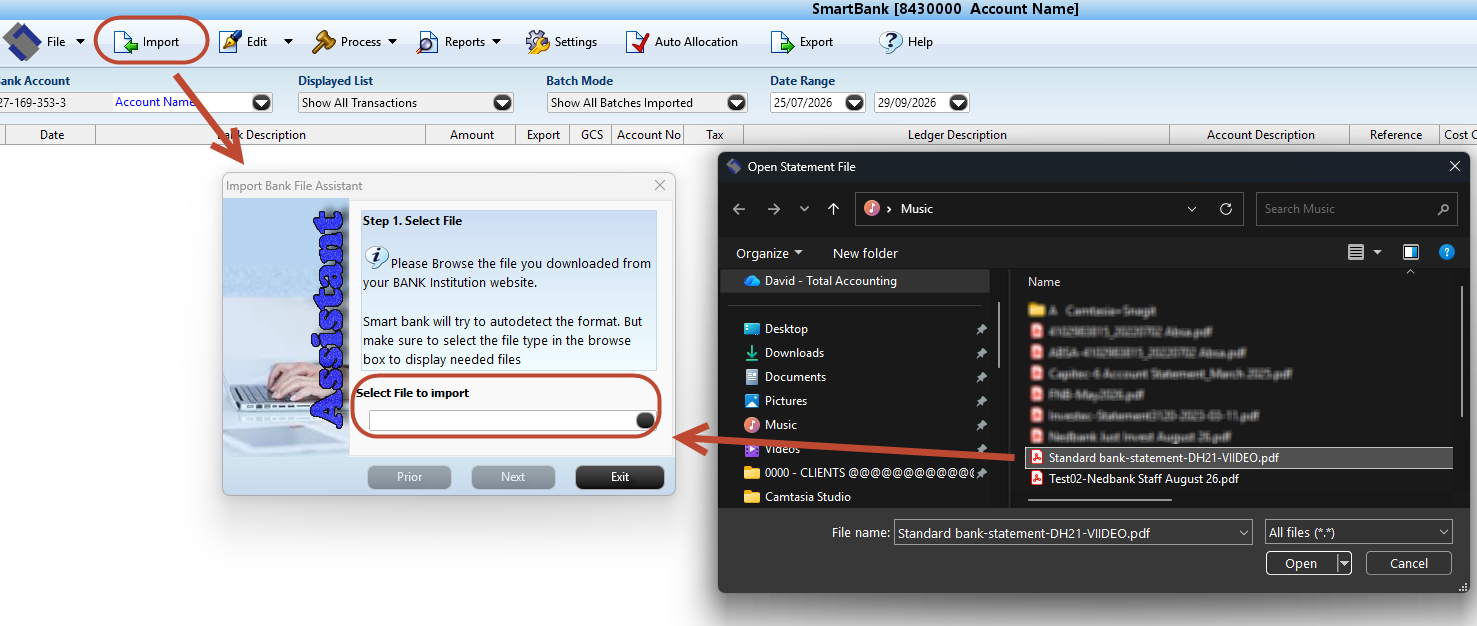
Import your bank statement file
Choose Import and select your supported bank-statement file. SmartBank converts supported original PDFs into transaction data during import, saving the separate PDF-to-CSV conversion and column-alignment work. Enter the PDF password if prompted.
 Enlarge screen ↗
Review, edit and allocate the transactions
Check the imported dates, descriptions and amounts. Edit where needed, allocate line by line or use auto-allocation for recurring transactions. You can also export CSV without accounting allocations if you prefer to finish the coding in your accounting package.
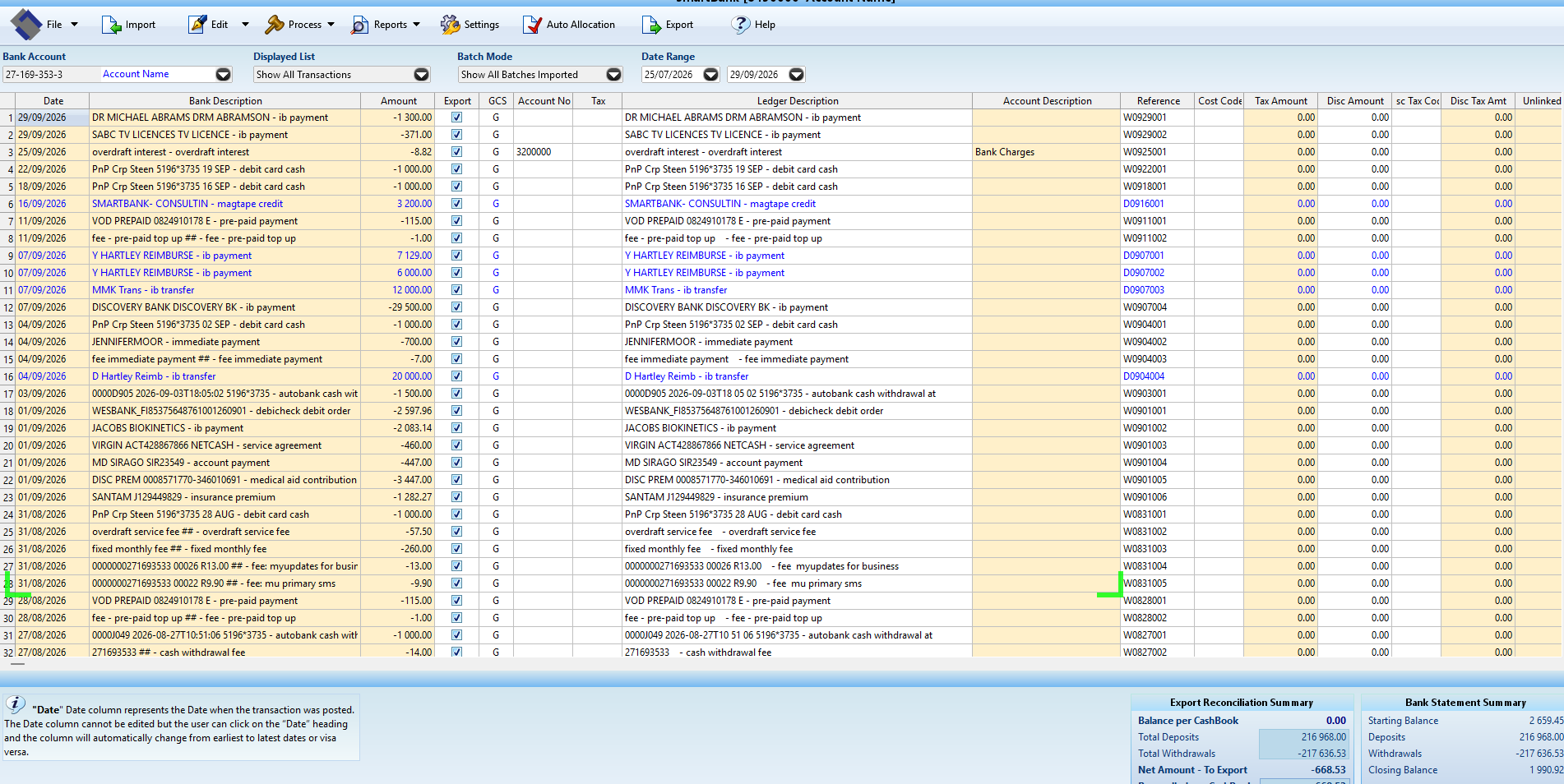 Enlarge screen ↗
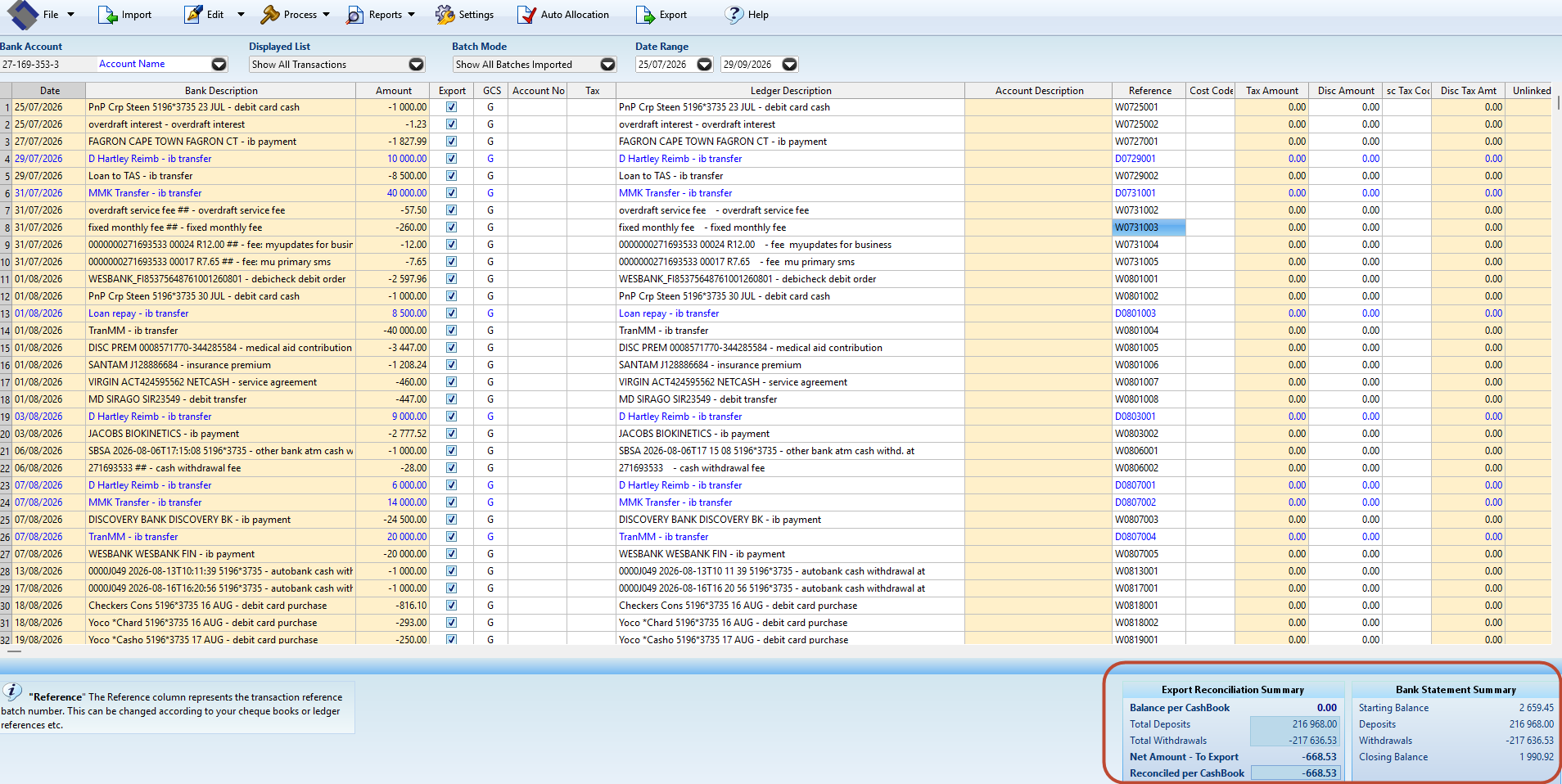
Match the cashbook to the bank-statement balance
Check the opening cashbook balance, deposits and withdrawals against the statement. The reconciled cashbook balance should agree with the bank-statement closing balance. Investigate differences before exporting a prepared cashbook.
 Enlarge screen ↗
Opening balance R2,659.45 − net withdrawals R668.53 = closing balance R1,990.92.
Reconciled cashbook: R1,990.92 · Bank statement: R1,990.92Where to find the reconciliation panels
Look at the bottom right of the SmartBank workspace. This full-screen view shows their location before the opening cashbook balance has been completed; the close-up above shows the matching balances.
Choose the format your accounting package needs
Open Export and choose the format that matches your accounting package’s cashbook import. For a data-only workflow, choose a suitable CSV format. Tell us your package and version if you need help confirming or adapting an export layout.
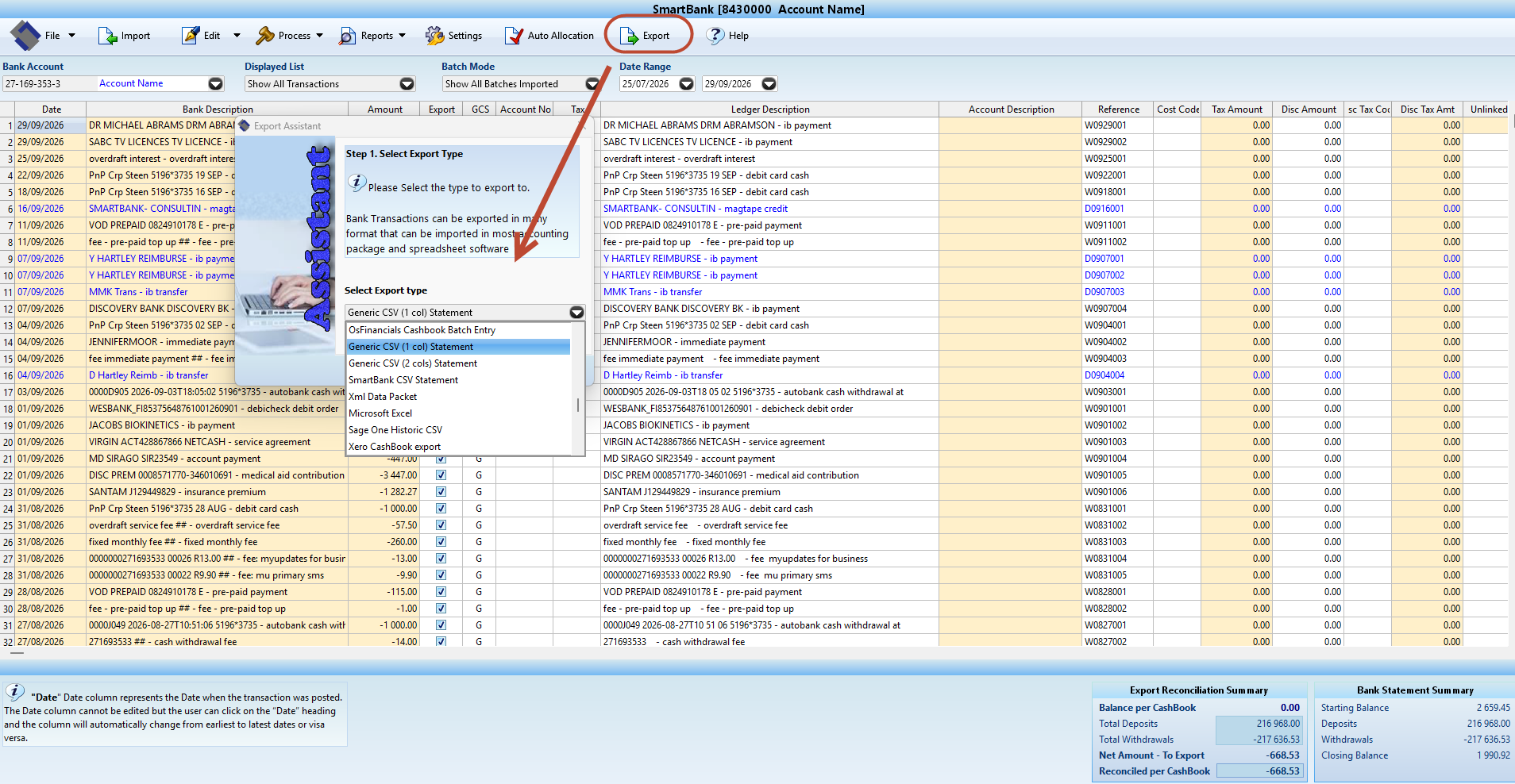 Enlarge screen ↗
Choose where to save the exported file
Continue through the export assistant, choose the export location and give the file a clear name. Keep the saved file where you can find it for the next step.
Save-location checklist
- Choose the folderUse a folder you can find again when importing into your accounting package.
- Name the file clearlyInclude the client or company, bank and period. For a CSV export, for example:
ClientName-Bank-2026-09.csv - Save and locate the exportConfirm the file is saved before opening your accounting package’s import process.
Import the saved file into your accounting package
Open your accounting package’s cashbook or bank-transaction import, select the file you saved and follow that package’s field-mapping and review steps. Your package must accept a compatible cashbook import. The screenshot below shows the exported CSV in Excel, ready for use; the accounting-package import is completed in your own software.
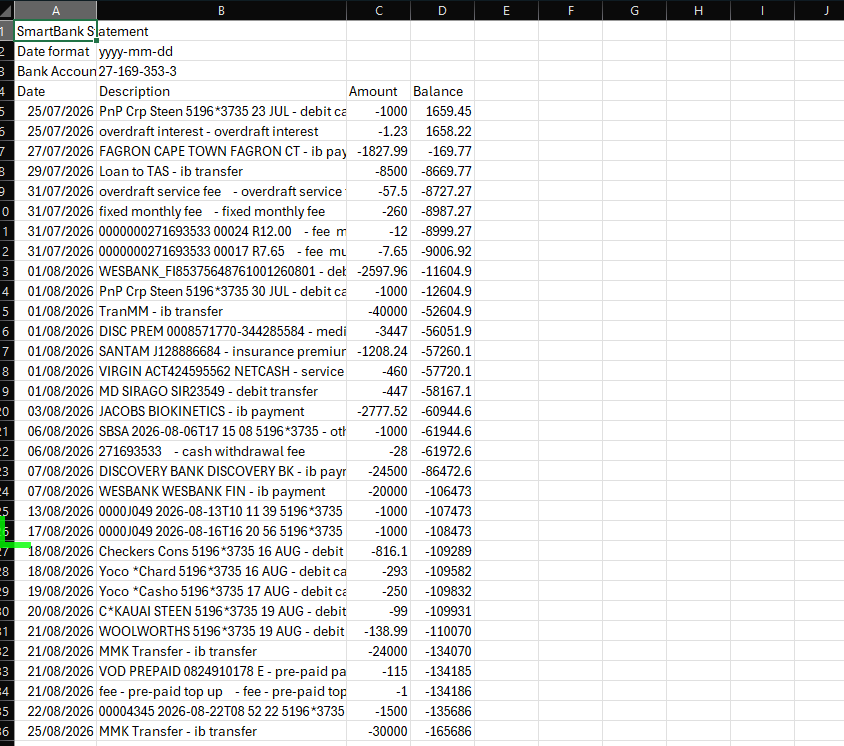 Enlarge screen ↗
Import → Export CSV
Get the statement into usable columns, then carry on with the bookkeeping in Excel or your accounting package.
Import → Allocate → Reconcile → Export
Use recurring allocation rules, review and balance the transactions, then export in the format your accounting package needs.
The result, side by side
From SmartBank to Excel.
The same workflow, with the exported CSV open alongside the SmartBank transaction screen. Enlarge it to see the detail.
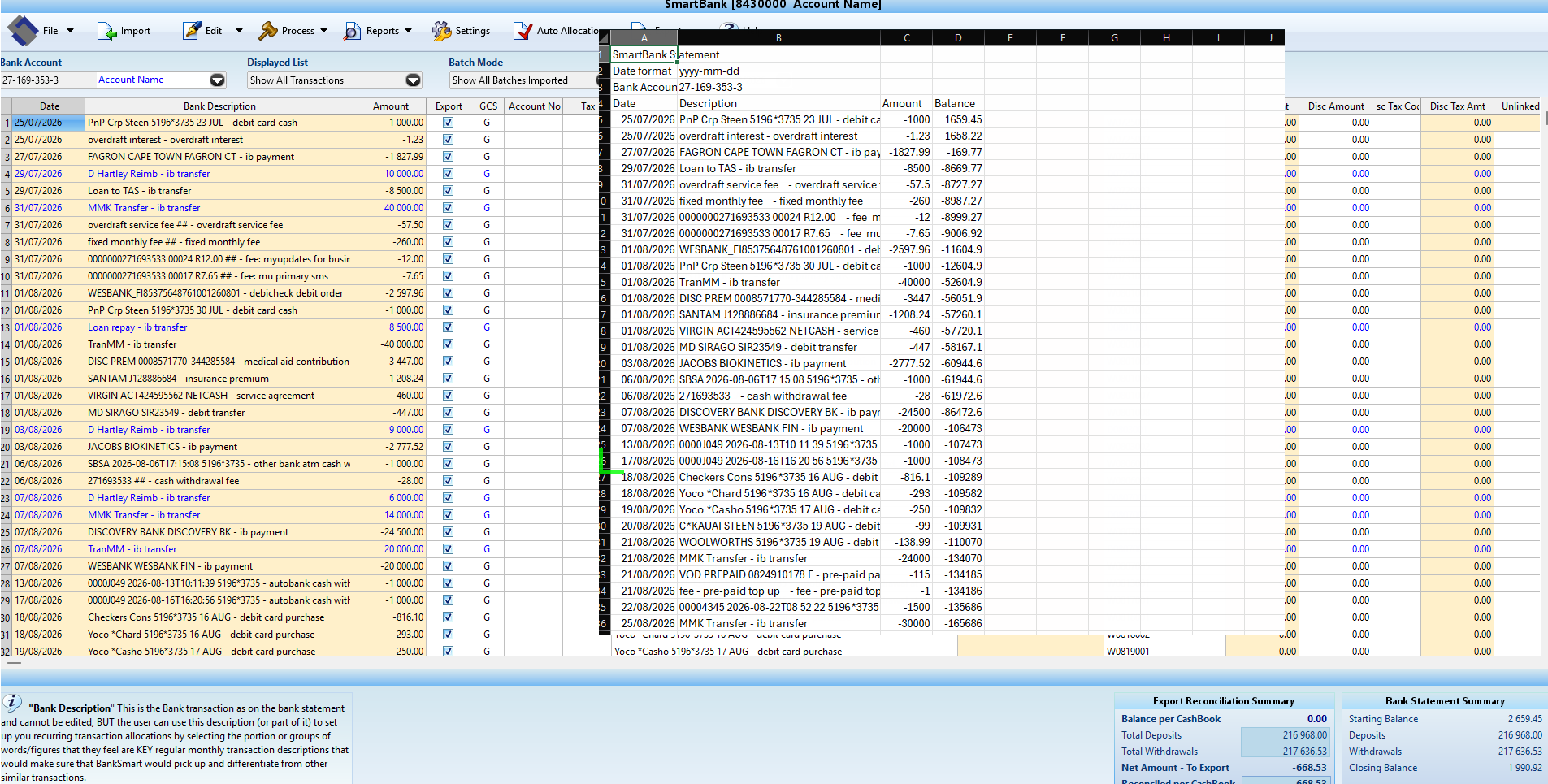 Enlarge the full picture ↗
Six months behind? A couple of years?
Start your catch-up with the bank statements.
Work through your original bank-issued PDF statements in batches. SmartBank removes the separate conversion step and helps you prepare the transactions for your catch-up bookkeeping.
Your accounting package must accept a cashbook import. Tell us which package you use: we’ll confirm the required format and can adapt export layouts where needed. Compatibility depends on the bank statement layout and your accounting software.